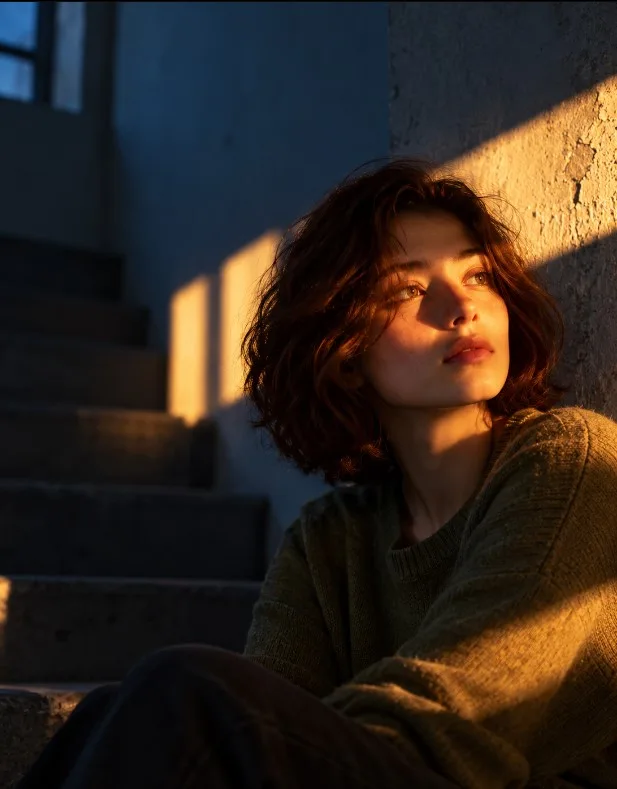
Capturing the Golden Hour: Cinematic Natural Light Portraiture
One of the most elusive yet breathtaking elements in portrait photography is the "golden hour"—the fleeting moments right before sunset when the sun casts a low, warm, and highly directional light. Creating this effect through AI requires an intimate understanding of how natural light interacts with environments, textures, and human features.
This portrait prompt is designed to take you inside an artist’s workshop, using the power of low-level golden hour sunlight to create a cinematic, emotionally resonant snapshot of a thoughtful older artist. Unlike artificial, overly lit portraits, this concept relies on high-contrast lighting to reveal character, age, and mood. How to Use This Prompt
To generate the most authentic and atmospheric results, keep these core principles in mind:
Copy the Master Prompt: Start with the base provided on this page to establish the exact lighting and environmental conditions.
Utilize Shading and Shadows: Mentioning shadows is as important as mentioning the light itself. Notice how phrases like "moody shadows" and "glowing patch" help the AI understand that the rest of the room should remain dark.
Respect Camera Settings: Utilizing terms like "35mm photograph" and "f/1.8" ensures that the focus remains tight on the man, with the foreground and background details melting into natural, soft-focus bokeh.
What this prompt helps you create
Master natural golden hour portrait photography with this candid cinematic sunset prompt featuring an artist in a rustic workshop. Ideal for realistic natural light art. This prompt gives you a structured starting point for subject, composition, lighting, styling and image quality. Use it as a guide rather than a guarantee: results vary with the reference image, generator and settings.
How to use this prompt
- Choose a clear reference image.Use a photo you own or have permission to edit; a sharp, well-lit image usually gives the model more useful detail.
- Copy the master prompt.Paste it into your image tool and upload the reference image if the prompt calls for one.
- Generate, review and refine.Change one detail at a time—such as lighting, background or crop—so you can tell what improved the result.
- Check before publishing.Review faces, hands, text, logos and artifacts, and make sure you have rights to the source image.
Copy-ready AI prompt
Copy the prompt below, then customize the subject, color palette, camera framing or setting to match your project.
Edit the uploaded reference photo into a cinematic, moody golden-hour portrait while preserving the original person's identity, facial features, skin tone, age, hairstyle, and natural body proportions. Keep the same person clearly recognizable. Create dramatic warm amber sunlight falling diagonally across the face, with deep cool-blue shadows and a soft, atmospheric background. Add natural directional window light, subtle shadows, realistic skin texture, delicate hair details, cinematic color grading, gentle film grain, and shallow depth of field. Give the image an intimate, editorial photography aesthetic with balanced exposure, rich but natural contrast, soft golden highlights, and cool shadow tones. Adapt the lighting and composition to the uploaded photo instead of replacing the original subject. Preserve the original clothing and pose wherever possible, making only subtle adjustments needed to achieve the cinematic look. Produce a photorealistic, high-quality result with natural details and clean image edges. Do not add text, logos, watermarks, borders, extra people, or artificial facial features. The final result must look like the original photograph professionally edited with cinematic golden-hour lighting, not a completely new image.
Tips for a better result
- 01Use a clear reference image.
- 02Try multiple variations.
- 03Review the final image before publishing.
Suggested settings
These are starting recommendations, not fixed requirements. Use the aspect ratio and controls available in your chosen AI tool.
Frequently asked questions
Can I use this prompt with Gemini?
Yes, you can try it in Gemini or another compatible image-generation tool. Interface options and results can vary by product and account.
Why does my result look different?
Reference images, model versions, aspect-ratio controls and random variation can all affect the output. Refine the prompt in small steps.
Can I use the generated image commercially?
Check the terms of your chosen AI service and the rights for any uploaded reference image, brand marks or third-party material before commercial use.
Creator tip: If your image generator struggles with lettering, generate the artwork without text and add accurate typography afterward in your design editor. Example images on this page should be replaced with your own final outputs before treating them as tested results.