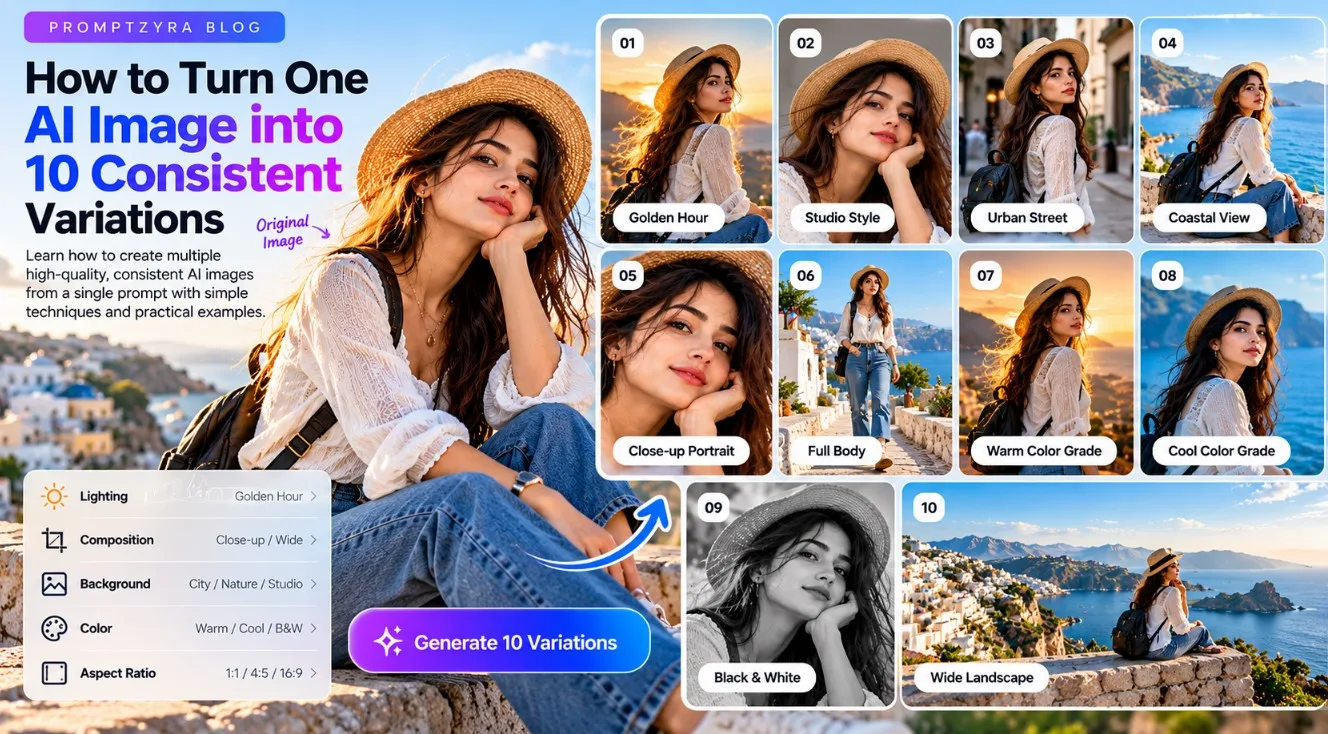
How to Create 10 AI Image Variations from One Image
Have you ever generated an AI image you really liked but wanted to explore different backgrounds, lighting, colors, or camera angles without starting from scratch?
You can often do this by using an existing image as a reference and making targeted changes through an image-generation or image-editing tool. This workflow can help you explore multiple creative directions while keeping important elements of the original image consistent.
In this guide, you will learn how to create AI image variations from one image, write effective editing prompts, and organize your results into a cohesive collection.
What Are AI Image Variations?
AI image variations are different versions of an image that share a common starting point but differ in selected visual details.
For example, you might begin with a portrait of a person wearing a white shirt. From that image, you could explore a sunset background, soft studio lighting, a close-up composition, or a different color grade.
Some variations change only the environment, while others change the composition or visual style.
The important distinction is between changing a specific detail and unintentionally changing the entire image. Reference images and precise editing instructions can help guide the process, although results depend on the tool and the complexity of the requested edit.
What You Need Before Starting
Prepare the following:
• An original image that you have permission to edit.
• An AI image tool that supports image uploads, reference images, or image editing.
• A clear idea of which elements should remain unchanged.
• A list of variations you want to create.
• A suitable image format and aspect ratio for your intended use.
If the image contains a recognizable person, make sure you have the necessary rights and permissions for your intended use.
Step 1: Choose Your Original Image
Start with an image that has a clear subject, readable composition, and useful visual details.
A portrait can be a good starting point because you can explore different backgrounds, lighting conditions, framing, and color treatments.
Before editing, identify the elements you want to preserve. These might include the person's identity, clothing, pose, product shape, or the overall arrangement of the scene.
**Example:** Your original image shows a woman sitting beside a window, wearing a cream sweater in soft daylight.
You want to preserve her appearance and clothing while exploring different photographic treatments.
Step 2: Define What Must Stay Consistent
Write down the essential details before generating variations.
For a portrait, these might include:
• The same person and recognizable facial features.
• The same clothing and accessories.
• The same general pose.
• The same overall photographic realism.
For a product image, you might preserve the product's shape, color, label, and proportions instead.
A reference image can help guide these details, but not every AI tool will preserve them perfectly. Review each result and correct any unintended changes.
Step 3: Change One Main Element at a Time
One of the simplest ways to create useful variations is to change a single main visual element in each prompt.
For example:
• Version 1: Warm golden-hour lighting.
• Version 2: Soft studio lighting.
• Version 3: A modern urban background.
• Version 4: A scenic coastal background.
• Version 5: A close-up composition.
This approach makes the results easier to compare and helps you identify which instructions have the greatest effect.
Step 4: Use a Reusable Image Variation Prompt
Use this template whenever you want to edit an existing image.
**Copy-ready prompt:**
Use the uploaded image as the visual reference. Preserve the main subject's recognizable appearance, essential features, clothing, and overall visual identity as closely as the tool allows. Change only the following element: [DESCRIBE THE CHANGE]. Keep the requested visual style consistent with the original image. Use realistic lighting, natural colors, accurate proportions, and detailed textures. Do not introduce unrelated objects or unnecessary changes. Maintain the original aspect ratio unless a different format is specified.
Replace the bracketed instruction with the exact change you want to make.
For example, to change the background, write: "Replace the background with a peaceful Mediterranean coastal village under clear afternoon sunlight while keeping the subject and clothing consistent."
Step 5: Create 10 Different Image Variations
Here are 10 practical prompts you can adapt for your own reference image.
### Variation 1: Golden-Hour Lighting
Use the uploaded image as a reference. Preserve the main subject, clothing, pose, and overall composition as closely as possible. Change the lighting to warm golden-hour sunlight with soft highlights, natural shadows, and a gentle golden rim light. Maintain realistic skin texture, detailed fabric, and natural colors. Avoid excessive glow and artificial smoothing.
### Variation 2: Professional Studio Style
Use the reference image and preserve the main subject's recognizable features, clothing, and pose. Change the environment to a clean professional photography studio with a neutral background and soft, diffused lighting. Create balanced exposure, realistic shadows, and a refined editorial photography aesthetic. Avoid unnecessary changes to the subject.
### Variation 3: Urban Street Background
Keep the main subject and clothing consistent with the uploaded reference. Replace the background with a believable modern city street featuring subtle architectural details and natural afternoon light. Maintain realistic perspective, balanced colors, and a clear separation between the subject and the environment.
### Variation 4: Coastal Travel Background
Preserve the subject's appearance, outfit, and general pose. Place the subject in a scenic coastal setting with blue ocean water, distant cliffs, and warm natural sunlight. Keep the environment photorealistic, with believable shadows, natural colors, and detailed textures.
### Variation 5: Close-Up Portrait
Use the uploaded image as the reference. Create a closer portrait crop that emphasizes the subject's face, natural skin texture, eyes, and hair. Preserve recognizable features and maintain realistic proportions. Use soft directional lighting and a clean background. Avoid altering the subject's identity.
### Variation 6: Full-Body Composition
Use the reference image to guide the subject's appearance and clothing. Create a full-body composition with natural body proportions and a believable standing pose. Extend the environment appropriately, keeping the lighting, shadows, and perspective consistent. Do not distort hands, feet, or clothing.
### Variation 7: Warm Cinematic Color Grade
Keep the composition, subject, and environment consistent with the reference. Apply a restrained warm cinematic color grade with golden highlights, balanced shadows, and natural skin tones. Preserve realistic details and avoid oversaturation or excessive contrast.
### Variation 8: Cool Cinematic Color Grade
Use the original image as the visual reference. Preserve the main subject and composition while applying a subtle cool color grade with balanced blue and teal tones. Maintain natural skin colors, realistic shadows, and believable lighting. Avoid making the image look artificial.
### Variation 9: Black-and-White Photography
Create a monochrome photographic version of the reference image. Preserve the main subject, recognizable features, composition, and clothing details. Use balanced grayscale tones, clear highlights, controlled shadows, and realistic texture. Avoid excessive contrast that removes important details.
### Variation 10: Wide Landscape Composition
Use the reference image to guide the subject's appearance. Recompose the scene into a wider landscape format, placing the subject naturally within a detailed environment. Extend the background in a believable way, maintaining consistent lighting, perspective, and proportions. Avoid simply stretching the original image or introducing duplicated subjects.
**Important:** These prompts describe intended edits, not guaranteed results. The tool may change details that you asked it to preserve, especially when changing framing, generating new backgrounds, or converting between aspect ratios.
Step 6: Review the Results and Correct Mistakes
After generating each version, compare it with the original image.
Check the following:
• Does the main subject still look recognizable?
• Has the clothing or product changed unexpectedly?
• Are the lighting and shadows consistent?
• Are the background and perspective believable?
• Are there distorted details, duplicated objects, or strange textures?
• Does the image meet your intended aspect ratio?
If something looks wrong, make a targeted correction rather than rewriting the entire prompt.
For example: "Correct the inconsistent sleeve shape while preserving the current background, lighting, pose, and overall composition."
Some tools may support selective editing or masking, which can help you target a particular area.
Step 7: Keep Your Variations Organized
If you are creating images for a website, portfolio, or commercial project, use clear filenames and keep related versions together.
Example filenames:
• `portrait-original.webp`
• `portrait-golden-hour.webp`
• `portrait-studio-light.webp`
• `portrait-coastal-background.webp`
• `portrait-monochrome.webp`
Use descriptive filenames that reflect the actual content. Keep a copy of the original image so you can return to it whenever needed.
Common Mistakes When Creating AI Image Variations
### Changing too many elements at once
If you change the background, clothing, lighting, camera angle, and subject simultaneously, it becomes difficult to control the outcome.
**Better approach:** Start with one main change, then refine the result.
### Assuming the subject will remain identical
Reference-based generation does not guarantee perfect identity or object preservation.
**Better approach:** Use a tool with suitable reference or editing controls and carefully inspect the result.
### Ignoring aspect ratio
Changing from a portrait to a wide landscape may require additional background generation or a new composition.
**Better approach:** Specify the target format and check the edges for unwanted distortions.
### Reusing one prompt without meaningful changes
Ten nearly identical prompts may produce repetitive images rather than a genuinely useful collection.
**Better approach:** Give each variation a distinct purpose, such as lighting, setting, framing, or color treatment.
### Publishing every result without reviewing it
Generated images can contain inconsistencies, artifacts, or unexpected alterations.
**Better approach:** Review the final image and correct visible problems before publishing.
Frequently Asked Questions
### Can I create multiple AI images from one reference image?
Yes. Many image-generation tools support reference images or image editing. You can request different backgrounds, lighting, compositions, and visual styles, although the available controls and consistency vary by tool.
### How do I keep the same person in AI-generated variations?
Use a suitable reference image, explicitly describe the features that should remain consistent, and make targeted edits. Some tools offer additional identity or reference controls, but exact preservation is not guaranteed.
### Can I use these prompts with Gemini or ChatGPT?
You can adapt the prompts to tools that support image uploads, image references, or image editing. The available functionality and results depend on the specific tool and its current features.
### How many variations should I create?
Start with three to five variations to compare different directions. Create more only when each version serves a clear purpose, such as a different format, setting, or lighting treatment.
### Can I use AI image variations commercially?
Commercial use depends on the tool's terms, your rights to the original image, applicable permissions, and any relevant legal restrictions. Check these requirements before using the results in advertisements, client work, or products for sale.
Final Thoughts
Creating multiple AI image variations becomes more manageable when you start with a clear reference, identify the details that should remain consistent, and change one major element at a time.
Use the reusable prompt template in this guide, experiment with the 10 variations, and inspect each result before using it in a project.
Explore more AI image editing techniques, practical prompt examples, and creative tutorials on Promptzyra to improve your image-generation workflow.